Nearpod Join Code: How to Join a Nearpod Lesson With a Code (2026)
Your teacher writes a short code on the board, and thirty seconds later the whole class is inside the same interactive lesson. That is the whole idea behind a Nearpod join code: one short code, no accounts, no downloads, and everyone is in.
This guide covers what a Nearpod join code is, where to enter it, how to join without an account, how the app works, and what to do when a code does not work.
1. What Is a Nearpod Join Code?
A Nearpod join code is a short five-character code a teacher generates when they launch a lesson on Nearpod, the interactive lesson platform used by schools around the world. Students type that code into the join page and are taken straight into the lesson.
Nearpod turns ordinary lessons into interactive experiences — slides mixed with quizzes, polls, videos, and questions. Students answer on their own devices while the teacher sees responses in real time. The platform offers more than 22,000 standards-aligned lessons and is part of the Renaissance learning ecosystem.
The teacher shares the code on the board, in the chat, by email, or through Google Classroom, Microsoft Teams, Canvas, or Schoology. Each code belongs to one lesson session, so last week’s code will not open today’s lesson. Three things make the system popular: no student account is needed, it works on almost any device, and joining takes less than a minute. Our JoinMyQuiz.com review explains how the same join-with-a-code idea works across the quiz platforms schools use most.
2. How to Join a Nearpod Lesson With a Code
Joining takes four steps, and the process is the same on a computer, a tablet, or a phone:
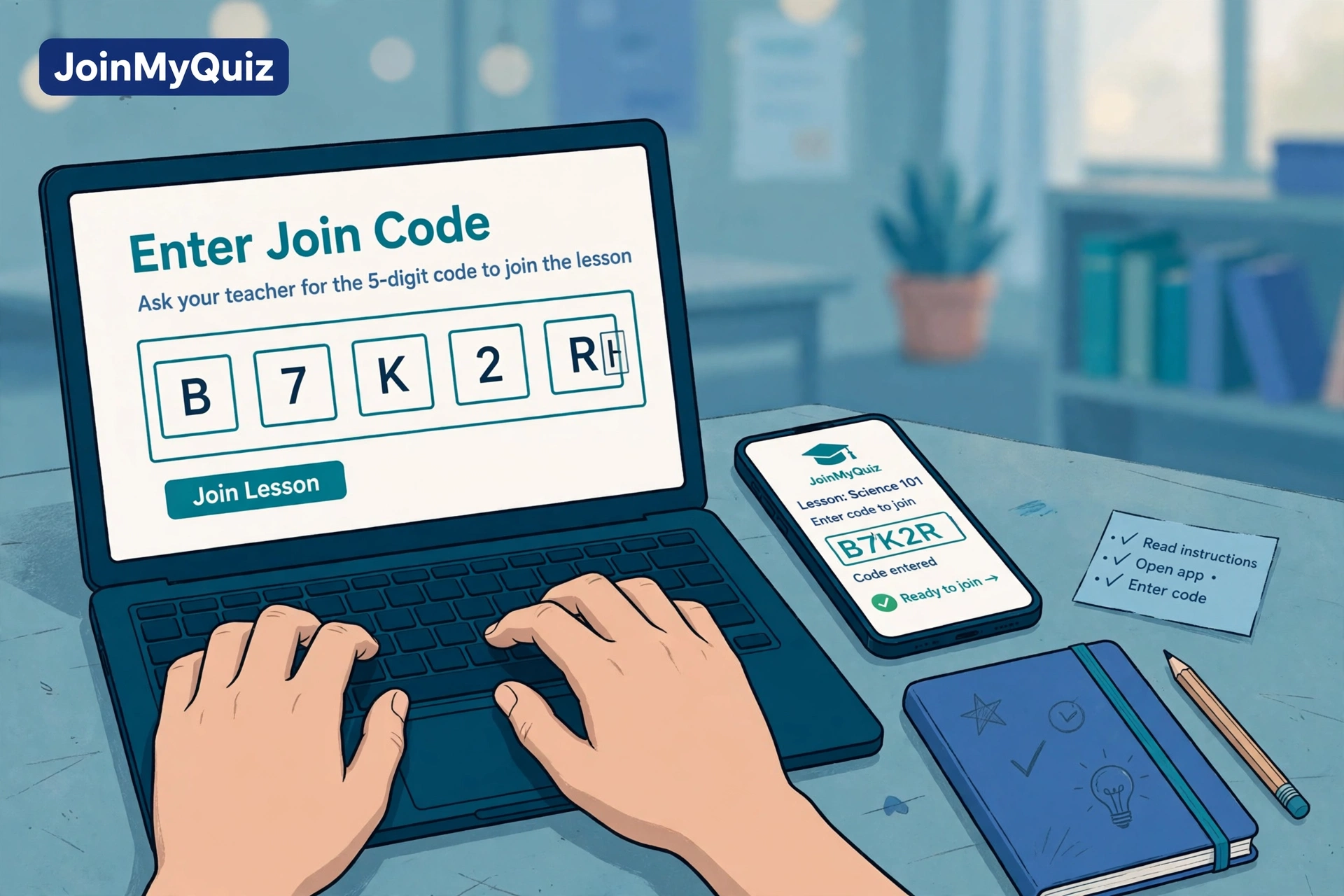
- Step 1: Get the code from your teacher. The code is five characters long — a mix of letters and numbers. Copy it exactly — and double-check lookalikes such as O and 0.
- Step 2: Go to the join page. Open a browser and visit join.nearpod.com. You will see a page that says “Join a Lesson” with a box labelled “Enter lesson code”. (Nearpod’s help pages also list nearpod.com/student.)
- Step 3: Enter the code and click Join. Type the code into the box and click Join. The code is not case-sensitive, so upper or lower case both work.
- Step 4: Enter your name and join. Nearpod will ask for your name — and sometimes extra details your teacher requested, such as a roll number. Type your real name, then click Join session.
In a live lesson, you see the slide your teacher is showing and answer activities as they appear — you cannot control the presentation yourself. If the teacher shared a link instead of a code, simply click it.
3. Joining Without an Account: Guest Mode Explained
Students do not need to create an account to join a Nearpod lesson — Nearpod’s own help centre confirms that a code or a link is enough.
After you enter the code, Nearpod gives you two ways in:
- Join as a Guest — the fastest option. Type your name, join, and start participating. Nothing is saved to an account, and there is no password to remember.
- Student name validation — some schools check the name you type against the class roster. If your school uses this, the guest option may not appear, and you must enter your name exactly as it appears on the roster.
Guest joining suits one-off lessons. The trade-off: your work is tied to the session, not to a profile you can log back into later. Some teachers prefer sign-in with a Google, Microsoft, or Apple account for tracking — but that is their choice, never a requirement.
Safety note: a real Nearpod join never asks you to pay. If a page asks for payment, close it and use join.nearpod.com or the official app.
4. Joining on the Nearpod App (iPhone and Android)
Joining from a phone or tablet? The Nearpod app is often the smoothest option — though never required, since the browser works fine too. It is free on the Apple App Store and Google Play.
- Step 1: Download and open the Nearpod app.
- Step 2: Tap Join a Lesson (sometimes shown as “Join a Nearpod”).
- Step 3: Type in the five-character code your teacher gave you.
- Step 4: Enter your name and tap Join.
Install it if your school uses Nearpod often — it keeps you signed in and avoids browser quirks on older devices. Borrowing a device or joining once? Skip the download: Nearpod’s FAQ notes students join instantly with a code or link and no app download is required. When you have the choice, use a computer browser — the larger screen makes slides, videos, and drawing activities easier.
5. Live Participation vs Student-Paced: What Changes When You Join
Teachers launch lessons in two modes:
- Live Participation — everyone moves together. The teacher controls the slides, polls and quizzes appear for the whole class at once, and answers arrive in real time. Join while the session is running — after the teacher ends it, the code stops working.
- Student-Paced — you move at your own speed. The teacher assigns the lesson with a deadline; open it whenever you like within that window, pause, and come back later. The same code (or link) works for the whole period.
The joining steps are identical in both modes. The only difference is timing: a live code works only while the lesson runs; a student-paced code stays valid until the deadline.
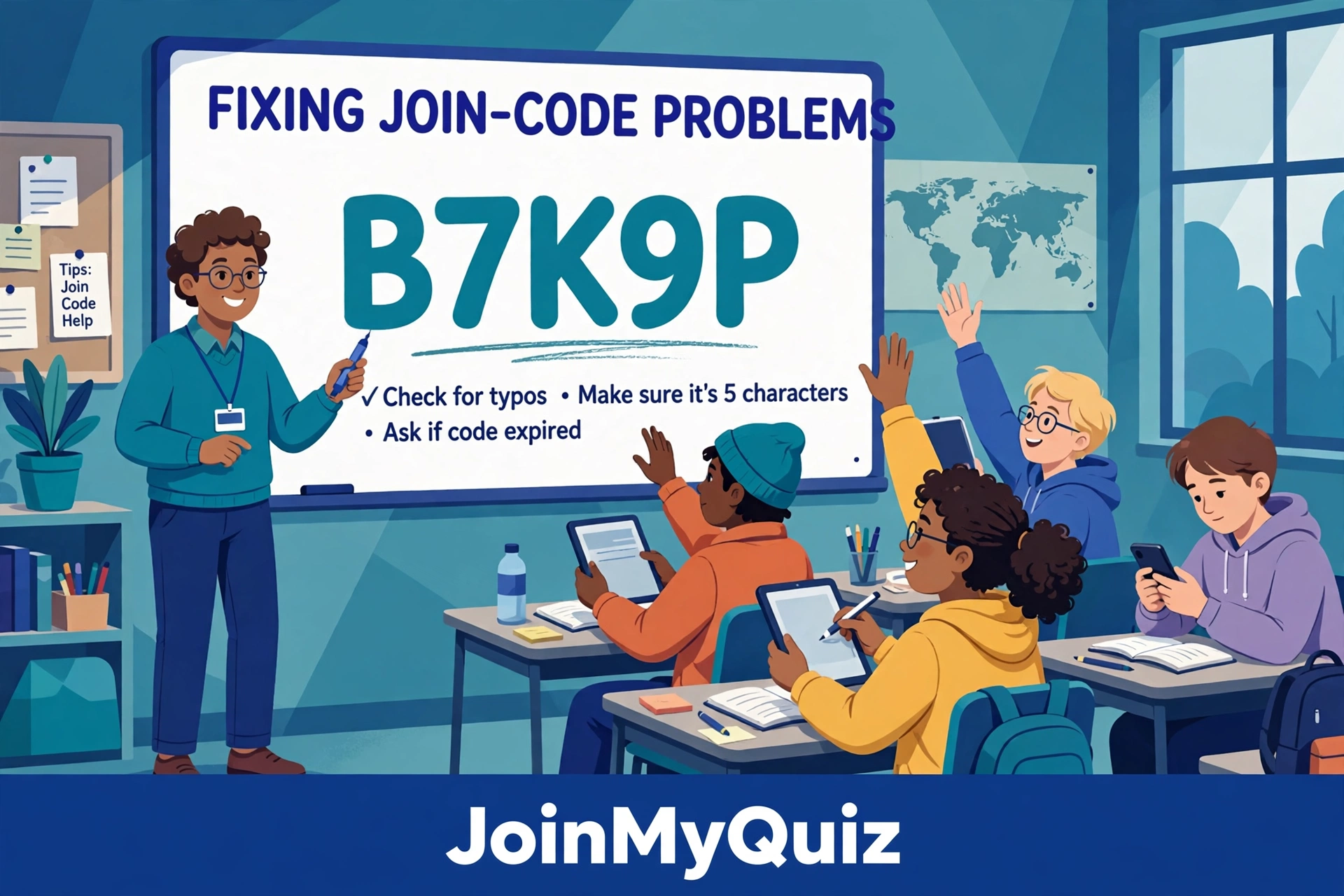
6. Nearpod Join Code Not Working? 7 Fixes That Actually Help
A code that refuses to work is frustrating, but the cause is usually simple. Work through these in order:
- 1. Check the code character by character. Most failures are typos — compare what you typed with what the teacher shared, letter by letter. Watch out for lookalikes: O and 0, I and 1, S and 5. Capitalisation is never the problem.
- 2. Confirm the session has started. A live lesson code only works after the teacher launches the session. If the teacher has not started it yet, the code will be rejected.
- 3. Ask for a fresh code. Codes are session-specific and they expire. If the lesson ended or the deadline passed, the old code is dead. Only the teacher can generate a new one.
- 4. Check your internet connection. A weak connection can stop the join screen from loading. Switch to stronger Wi-Fi, move closer to the router, or try mobile data.
- 5. Refresh, clear cache, or switch browsers. If the page loads but the code will not submit, refresh, clear your cache, or try another browser. Nearpod works best in up-to-date Chrome, Firefox, or Edge.
- 6. Update or reinstall the app. On a phone or tablet, an outdated Nearpod app can fail to connect. Update it from your app store, or delete and reinstall it.
- 7. Try another device. If the code works on a different device or network, the problem is with your first device, not the code.
Websites listing “free Nearpod codes that always work” cannot help you — a code is generated for one teacher’s lesson, so only your teacher’s code opens your class.
7. Tips for Teachers Sharing a Join Code
For teachers, a few small habits make joining painless. Display the code large — on the board or the shared screen in a big, clear font — and read it out loud once, slowly. Share it in two places: on the board and in the class chat, Google Classroom, or Teams channel.
Tell students the mode. Say whether the lesson is live or student-paced, and give the deadline for student-paced work. Keep a join link as backup — a link does the same job as the code with zero typing. And check the dashboard early: Nearpod shows who has joined as students arrive, so if several names are missing after a minute, the code — not the students — is usually the problem.
Nearpod’s free Silver licence supports up to 40 student joins per lesson, including Student-Paced mode and post-session reports.
8. Is Nearpod Safe for Students?
Yes — Nearpod is a legitimate education platform used by schools worldwide, part of the Renaissance learning ecosystem. In a 2023 survey of 1,025 teachers and education leaders, 92% said Nearpod improves student engagement.
Joining a lesson is safe: students enter a code on the official join page, give only a name, and join the teacher’s lesson. No payment, no personal details beyond a name, and no account are required. The one thing to protect is the code itself — because a code is all it takes to enter a lesson, teachers should only share codes with their own class, and students should never post a live lesson code publicly.
The rules are simple: join only through the official Nearpod join page or app, and never pay to join a lesson. More on code-based joining: JoinMyQuiz.
Final thoughts
A Nearpod join code is one of the simplest ideas in classroom technology: five characters, one page, and you are in the lesson. No account, no download, and no setup standing between a student and the class.
Remember the essentials: get the code from your teacher, enter it at join.nearpod.com, type your name, and join. If the code fails, check it character by character, confirm the session is live, and ask your teacher for a fresh one.
Frequently Asked Questions
What is a Nearpod join code?
A short five-character code a teacher generates when launching a lesson on Nearpod. Students enter it at join.nearpod.com (or in the app) to join that lesson. Each code belongs to one lesson and stops working once the session ends or the deadline passes.
Do I need an account to join a Nearpod lesson?
No — just the code and a name. After entering the code, click “Join as a Guest” or enter your name for student name validation, depending on your school’s setup.
Where do I enter a Nearpod join code?
Go to join.nearpod.com in any browser, type the code into the “Enter lesson code” box, and click Join. Or open the Nearpod app, tap “Join a Lesson,” and enter the code there.
Why is my Nearpod join code not working?
Usually a typo, a session that has not started (or has already ended), an expired code, or a weak connection. Double-check every character, confirm the lesson is live, and ask your teacher for a fresh code.
Can I join a Nearpod lesson without the app?
Yes. The app is optional — join from any browser at join.nearpod.com. The app is handy on phones and tablets, but a computer browser often gives the best experience.